

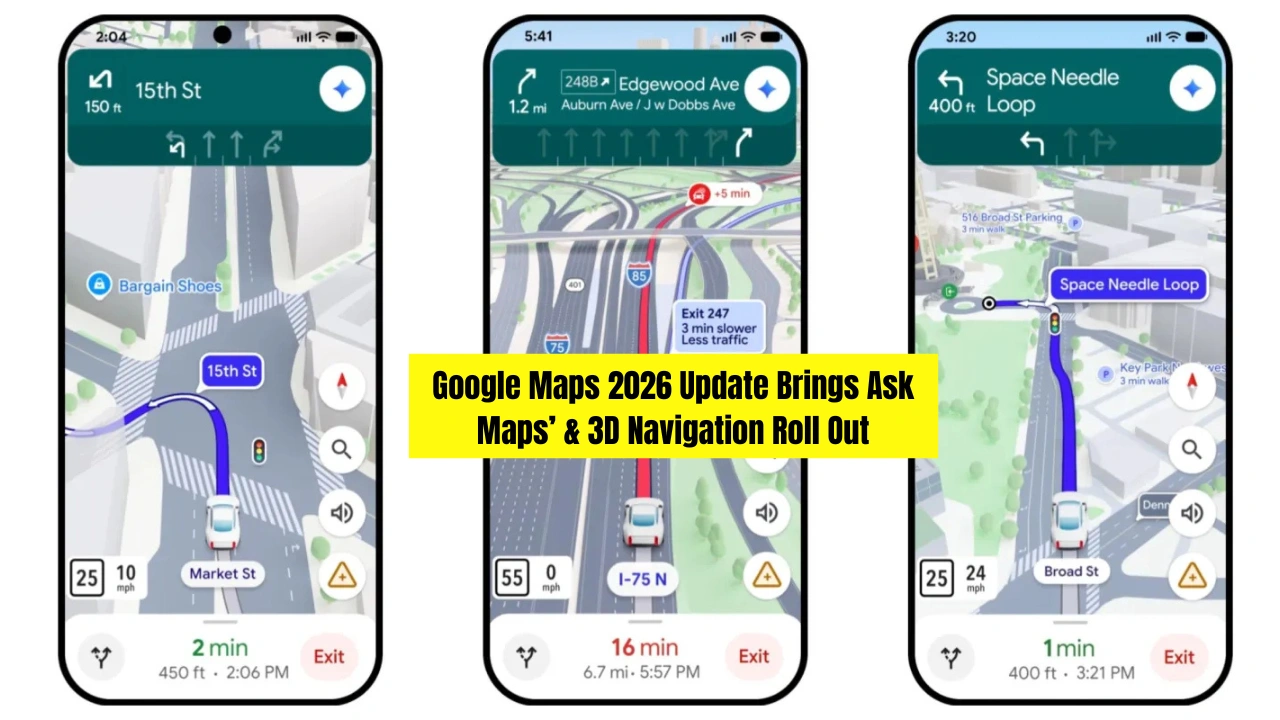
The Google Maps 2026 update, announced on March 11, 2026, marks the most significant transformation the world’s most popular navigation app has seen in more than ten years. Google has introduced two landmark features simultaneously: Ask Maps a Gemini AI-powered conversational assistant embedded directly inside the app and Immersive Navigation — a fully redesigned 3D driving view that renders real-world buildings, overpasses, terrain, and road details as you drive. Both features are now actively rolling out to users in the United States and India on Android and iOS, with a desktop version of Ask Maps confirmed to follow in the coming months.
Ask Maps: Google’s Gemini AI Comes to Navigation
The centrepiece of the Google Maps AI update is Ask Maps — a Gemini-powered chatbot interface built directly into the Maps app that allows users to ask complex, real-world questions in natural language — the kind of questions that a traditional map could never answer before.
To access it, users simply tap the new “Ask Maps” button located directly beneath the main search bar on the app homepage. This opens a chatbot-style interface that prompts: “Ask anything, about anywhere.” From there, users can type or speak detailed conversational queries.
Google demonstrated several examples of what Ask Maps can handle:
- “My phone is dying — where can I charge it without having to wait in a long line for coffee?”
- “Is there a public tennis court with lights on that I can play at tonight?”
- “Find me a quiet café near a bookshop where I can work for a few hours on a Sunday afternoon.”
- “Plan a morning route that includes a bakery, a pharmacy, and ends near a park.”
Rather than returning a simple list of pins, Ask Maps generates a custom map response — surfacing only the most relevant results drawn from over 300 million places in Google’s global database, community reviews, ratings, and real-time data.
How Ask Maps Uses Gemini AI
Ask Maps is built on Google’s latest Gemini AI models, which give it the ability to process multi-step, context-aware queries rather than simple keyword searches. CNBC reports that the feature was described by a Vice President at Google as enabling “intricate inquiries beyond standard navigation issues.”
The system can also apply personalisation based on a user’s previous searches, saved places, and preferences stored in the app. For trip planning, Ask Maps is able to build a multi-stop itinerary using location data, community reviews, and real-time availability signals — a capability that previously required switching between multiple apps or conducting extensive manual research.
Key capabilities of Ask Maps at launch:
- Natural language conversational search with context awareness
- Custom map output tailored to the specific query
- Multi-stop trip itinerary building
- Access to 300 million+ places, reviews, and real-time data
- Personalised recommendations based on saved history
- Suggested prompts displayed on the chatbot opening screen
- Voice query support alongside typed input
Immersive Navigation: The 3D Driving Revolution
Alongside Ask Maps, Google simultaneously launched Immersive Navigation — described by Google, TechCrunch, MacRumors, and Engadget as the single biggest update to driving directions in Google Maps in over a decade.
The core change is a full shift from 2D flat map navigation to a three-dimensional rendered driving view. Instead of seeing a top-down flat road map during navigation, drivers now see a layered 3D environment that includes:
- Nearby buildings rendered from Street View imagery
- Overpasses, underpasses, and tunnels shown with accurate elevation and depth
- Terrain gradients and landscaping for contextual orientation
- Lane markings highlighted for split-second decision making
- Crosswalks indicated at intersections
- Traffic lights and stop signs flagged in the navigation view
- Landmark-based voice directions using real-world visual anchors
- Auto zoom in and out based on driving speed and road complexity
- Speed limit display and speedometer integration
How the 3D View Is Built: AI and Street View Combined
The technical infrastructure behind Immersive Navigation is itself a significant AI achievement. Google’s engineering team uses a combination of satellite imagery, Street View photography, and real-time road data fed through AI models to generate the 3D environment that users see during navigation.
A hands-on test by technology creator Kevin Stratvert — conducted with the Google Maps team in Seattle — found that the new 3D view was particularly effective at complex intersections, where the elevation and spatial rendering helped drivers identify overpasses from ground-level roads instantly. The stated goal, according to Google’s blog post on March 11, is to “make the map match what you actually see through your windshield.”
Engadget describes Immersive Navigation as “Maps receiving a Gemini makeover, with a redesign of the driving experience headlining the update,” noting the visual jump is comparable to the difference between early Google Maps and Street View when it first launched.
Availability: Where and When to Expect It
| Feature | Launch Regions | Platform |
|---|---|---|
| Ask Maps | United States and India | Android and iOS |
| Ask Maps Desktop | Confirmed — timeline not disclosed | Web (Google Maps) |
| Immersive Navigation | United States | Android and iOS |
| Immersive Navigation (Global) | Reports suggest gradual rollout | Android and iOS |
India is notably one of the two launch countries for Ask Maps, making it one of Google’s most globally inclusive AI feature rollouts in recent years. Users in both countries need to ensure they have the latest version of Google Maps installed to access both features.
How to Enable the New Features: Step-by-Step
- Update Google Maps to the latest version via Google Play Store or App Store
- Open Google Maps and look for the “Ask Maps” button below the main search bar
- Tap it to open the Gemini-powered conversational interface
- Type or speak your question directly into the chat prompt
- Review the custom map and recommendations generated in response
To enable Immersive Navigation 3D view:
- Update Google Maps to the latest version
- Start a navigation route as usual
- During turn-by-turn navigation, look for the 3D view option in the top-right corner of the navigation screen
- Tap to toggle from the standard 2D view to the new Immersive Navigation 3D mode
- Adjust zoom and orientation preferences via the map settings menu