


The Microsoft Update Catalog at catalog.update.microsoft.com Provides Direct Download Access to Every Windows Security Update, Cumulative Update, Driver Package, and Hotfix Released Since 2000 Here Is the Complete Step-by-Step Process for Manually Searching, Downloading, and Installing Any KB Update on Windows 10 or Windows 11 in 2026…
The Microsoft Update Catalog is the official Microsoft repository where every Windows update including security patches, cumulative updates, driver packages, and hotfixes is stored and made available for manual download without using Windows Update’s automatic delivery system.
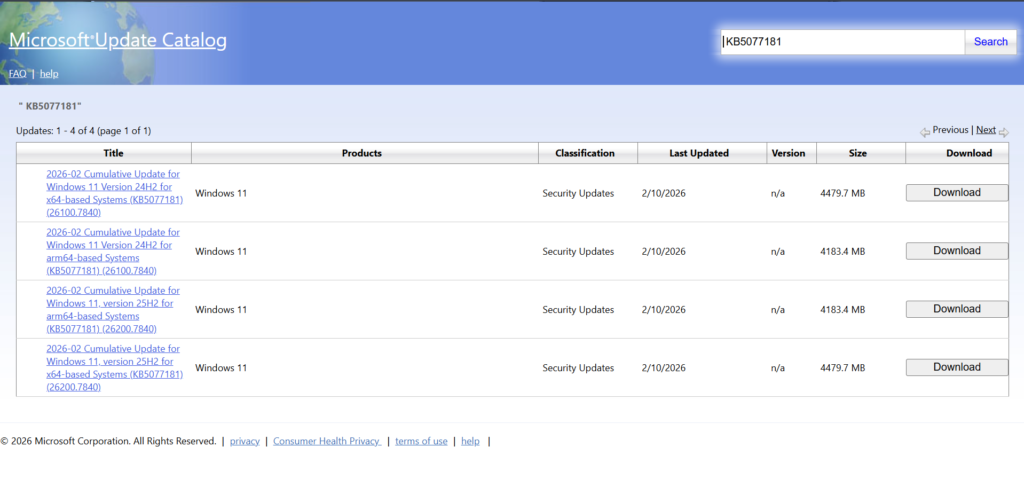
Located at catalog.update.microsoft.com, the catalogue allows IT administrators, enterprise users, and individual PC owners to download specific KB (Knowledge Base) updates directly to their device or to offline installation media for deployment across multiple machines on a network.
The latest entries in the catalogue as of early 2026 include the February 2026 Cumulative Update for Windows 11 version 25H2 (KB5077181) and the January 2026 Cumulative Update for Windows 10 (KB5073724) reflecting the catalogue’s up-to-date status for active Windows versions.
Why Use the Microsoft Update Catalog Instead of Automatic Updates
Windows Update handles most routine patching automatically, but the Microsoft Update Catalog serves specific scenarios where the automatic system falls short:
- Offline or air-gapped computers — machines that have no internet access and need updates delivered manually via USB or network share
- Update rollback — downloading the specific previous build to understand exactly what a problematic update changed
- Targeted patch deployment — IT administrators who need to install one specific security patch across a company’s fleet without triggering a full cumulative update cycle
- Troubleshooting failed updates — when Windows Update reports an error downloading a specific KB, the catalogue allows a direct download that bypasses the delivery mechanism entirely
- Driver updates — the catalogue hosts driver packages for hardware components not available through the standard device manager update flow
- Historical updates — retrieving patches for supported systems running older Windows versions like Windows 10 LTSB or Windows Server builds
Step 1: Finding the Right Update on the Catalogue
Every Windows update carries a KB number a unique identifier in the format KB followed by 7 digits (example: KB5077181). Finding the right KB number before visiting the catalogue makes the search process faster:
- Check Windows Update History on your PC (Settings → Windows Update → Update History) to identify the exact KB number of a recently failed or needed update
- Visit the Microsoft Security Update Guide at msrc.microsoft.com to find the KB number for a specific security patch by CVE identifier or patch date
- Search any technology news source or Microsoft blog post announcing the current month’s Patch Tuesday updates
Once you have the KB number, proceed to the catalogue.
Step 2: Searching the Microsoft Update Catalog
- Open any modern browser the catalogue works in Microsoft Edge, Google Chrome, Mozilla Firefox, and others
- Navigate to: catalog.update.microsoft.com
- In the Search text box at the top of the page, type your KB number (example: KB5077181) or a descriptive search term (example: “Windows 11 25H2 cumulative update 2026”)
- Press Enter or click the Search button
- The results page displays all matching updates with the following information columns: Title, Product, Classification, Last Updated Date, Version, and Size
The results may show multiple variants of the same KB — different versions for x64 (64-bit), x86 (32-bit), and ARM64 architecture.
Step 3: Selecting the Right Architecture
Choosing the correct system architecture is critical — installing an x86 update on a 64-bit system or vice versa causes installation failure:
| System Type | Architecture to Download |
| Standard desktop/laptop (most PCs) | x64-based Systems |
| Older 32-bit PC | x86-based Systems |
| Microsoft Surface Pro X, ARM laptops | ARM64-based Systems |
| Windows Server (standard) | x64-based Systems |
To confirm your system’s architecture: Right-click Start → System → Device Specifications → System type.
Step 4: Downloading the Update File
- Click the Title link of the correct update variant in the search results — a pop-up window opens
- The pop-up displays the update’s file details including exact file size and a direct download link
- Click the download link — your browser’s standard download dialogue appears
- Choose Save to your preferred folder — the downloaded file carries a .msu extension for most Windows updates or .cab for some driver and component packages
- Close the download pop-up and the catalogue window once the download completes
Note: the catalogue uses a pop-up window for downloads — ensure your browser’s pop-up blocker is disabled for catalog.update.microsoft.com, or add the site to your browser’s trusted/allowed pop-ups list before beginning.
Step 5: Installing the Manually Downloaded Update
Once the .msu file is downloaded, installation follows a straightforward process:
Method A: Double-Click Installation (Simplest):
- Navigate to the folder where you saved the .msu file
- Double-click the file — the Windows Update Standalone Installer launches automatically
- Click “Yes” when asked to confirm the installation
- Wait for the installation to complete — progress displays in a small dialogue box
- Restart your PC when prompted — most cumulative updates require a restart to apply
Method B: Command Prompt Installation (For Advanced Users and Scripted Deployment):
- Open Command Prompt as Administrator — right-click Start → Command Prompt (Admin)
- Type the following command and press Enter: wusa.exe “C:\Updates\KB5077181.msu” /quiet /norestart Replace the file path with your actual download location and filename.
- The /quiet flag installs without a dialogue box; /norestart prevents automatic restart — remove /norestart if you want the system to restart automatically after installation
- Restart the machine manually after installation completes
Step 6: Verifying the Update Installed Correctly
After installation and restart, confirm the update is live on your system:
- Go to Settings → Windows Update → Update History
- Scroll through the history list — your KB number should appear with a “Successfully installed” status and the date of installation
- Alternatively, open Run (Win + R), type winver, and press Enter — the build number shown should match the post-update version stated in the catalogue or Microsoft’s release notes
Latest 2026 Catalogue Updates to Know
The catalogue currently hosts these major 2026 releases for active Windows versions:
| Update | Windows Version | Release Date | File Size |
| KB5077181 | Windows 11 v25H2 Cumulative | February 2026 | ~4,479 MB |
| KB5078127 | Windows 11 v25H2 Cumulative | January 2026 | ~4,252 MB |
| KB5073724 | Windows 10 v21H2 Security | January 2026 | ~705 MB |
| KB5078131 | Windows 10 v1809 LTSB | January 2026 | ~716 MB |